(English Version) Driver App User Guide
Step 1:
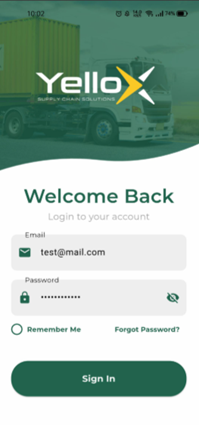
Open the YXE Driver App and log in using the credentials provided by the Vendor Portal User. Enter your username and password carefully, then tap Log In to access the app.
Step 2: Once you are logged in, you will see three icons on the screen. Each icon represents a different function or option within the YXE Driver App. Review the three icons carefully and select the one that corresponds to the task you need to complete.
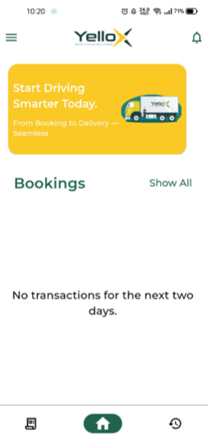
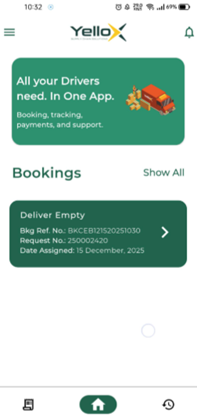
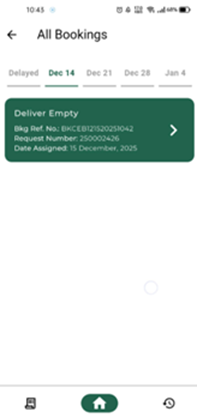
- Homepage – The Homepage displays all requests assigned to you as a driver. By default, the screen shows requests scheduled for today and tomorrow. To view additional requests, including those scheduled more than two days in advance or any delayed requests, select the Show All button. This will display the complete list of assigned requests so you can review upcoming and delayed requests as needed.
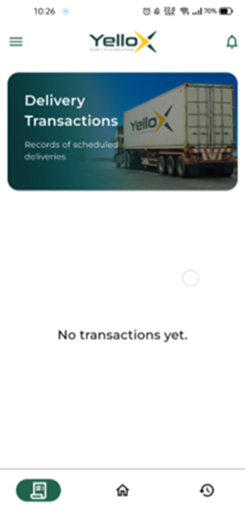
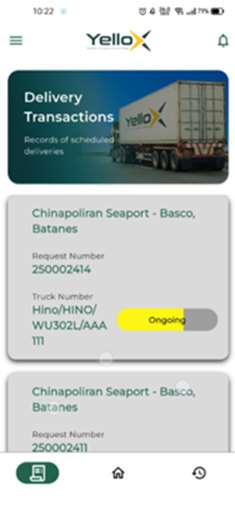
- Transaction - After the driver submits a POD from the Home page, the request will automatically move to the Transactions page. This section displays all ongoing transactions, allowing the driver to track the status and progress of their submitted deliveries.
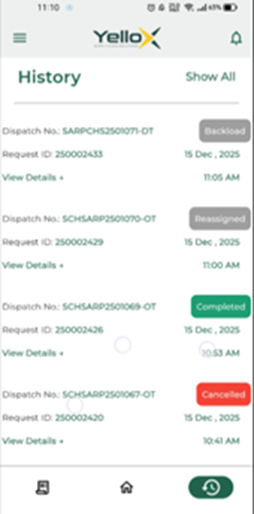
- History - This section displays the complete history of all dispatch requests. Any transaction that has been completed, backloaded, re-assigned, or cancelled will appear here for reference. The screen initially shows the most recent five transactions. To view the full list, select the Show All button.
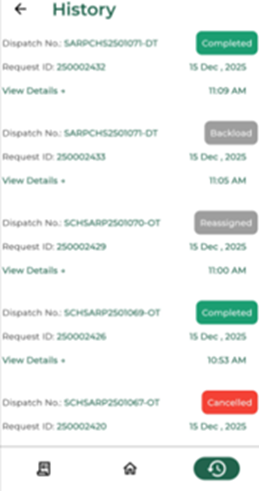
-
To upload a Proof of Delivery (POD), the driver must first select the applicable dispatch request from the list of assigned requests. Once the correct request is selected, the driver can proceed with the POD upload process.
a. Then they can see the details on the dispatch request
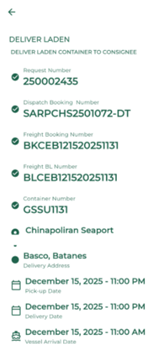
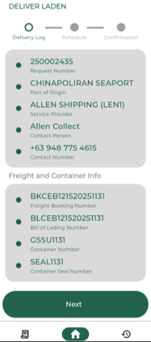
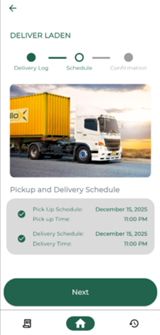
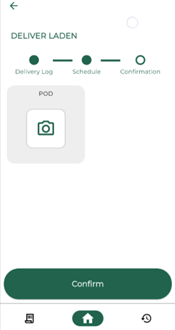
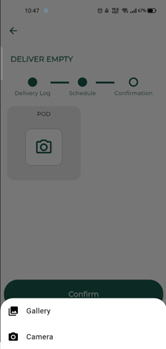
a. Once they are on the POD page, the driver user needs to upload an e-POD, they can either use a camera to take a picture or upload from the gallery. Once the e-POD has been uploaded, the driver needs to click on the Confirm button to show the option "Gallery or Camera" to upload the POD. One field can accommodate documents up to 10 MB in size.
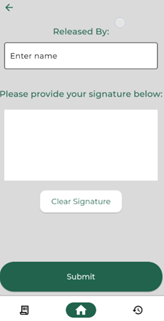
a. After, they upload, then the driver will see this page where they can get the name of the person who released or received the container. Then they can get the signature of the person and click submit